FI- Journal Entry Posting
This section includes the following journal entry posting processes:
- Monthly Posting of Journal Entry
- Payment Entry JV against Billing ID sent by the Tax Consultant
- Journal Entry Posting for Monthly Payroll
FI - Monthly Posting of Journal Entry
Executed by
Accounts Executive - Receivable
Processes Triggered From
- Student Admission – New Student Admission "(Variant)", Existing Student "(Variant)"
- Student Transfer
Navigation
Navigation 1: Home > Accounting Module > Journal Entry
Navigation 2: Home > Sales Invoice > Connections > Journal Entry
Steps
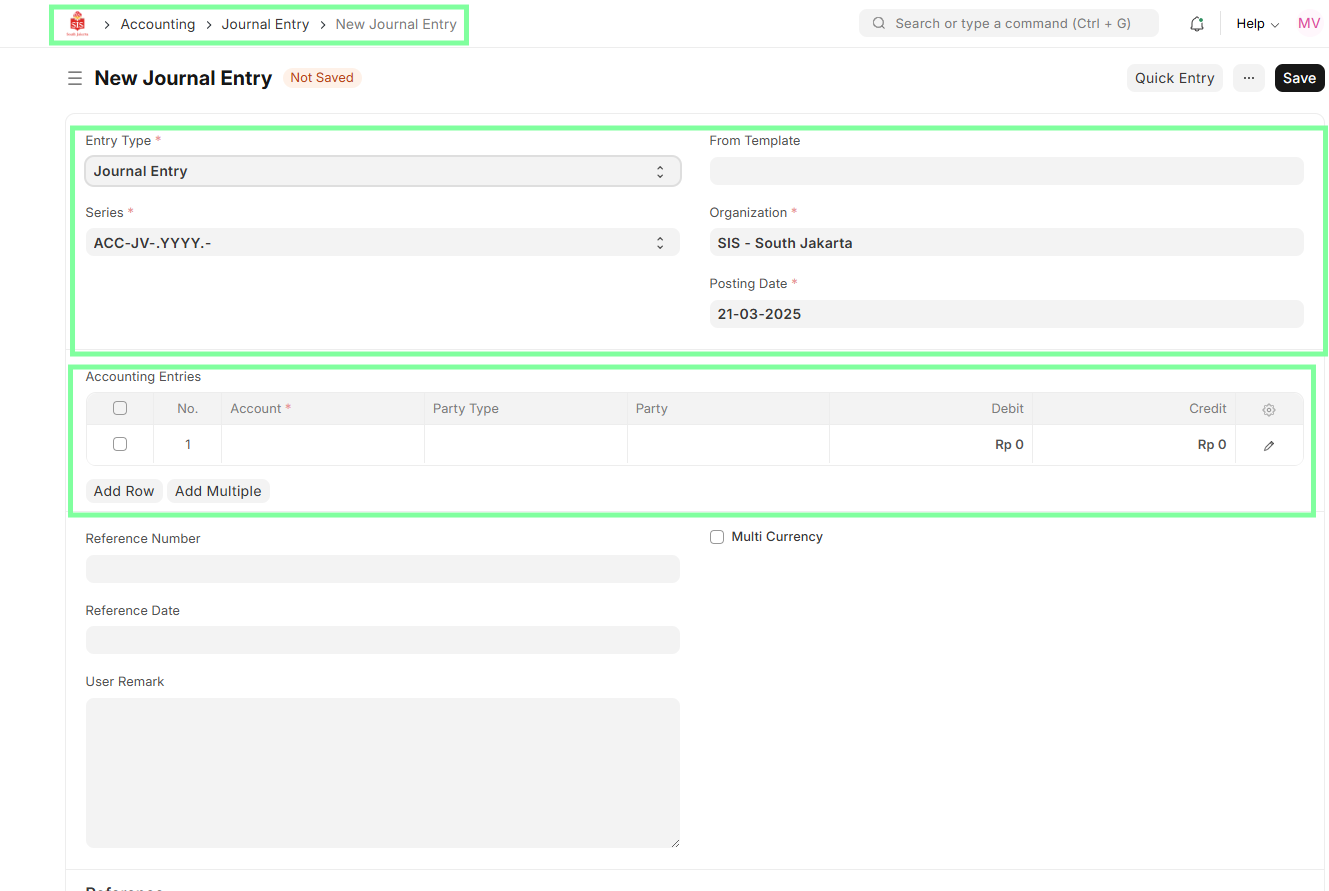
- Navigate to Journal Entry.
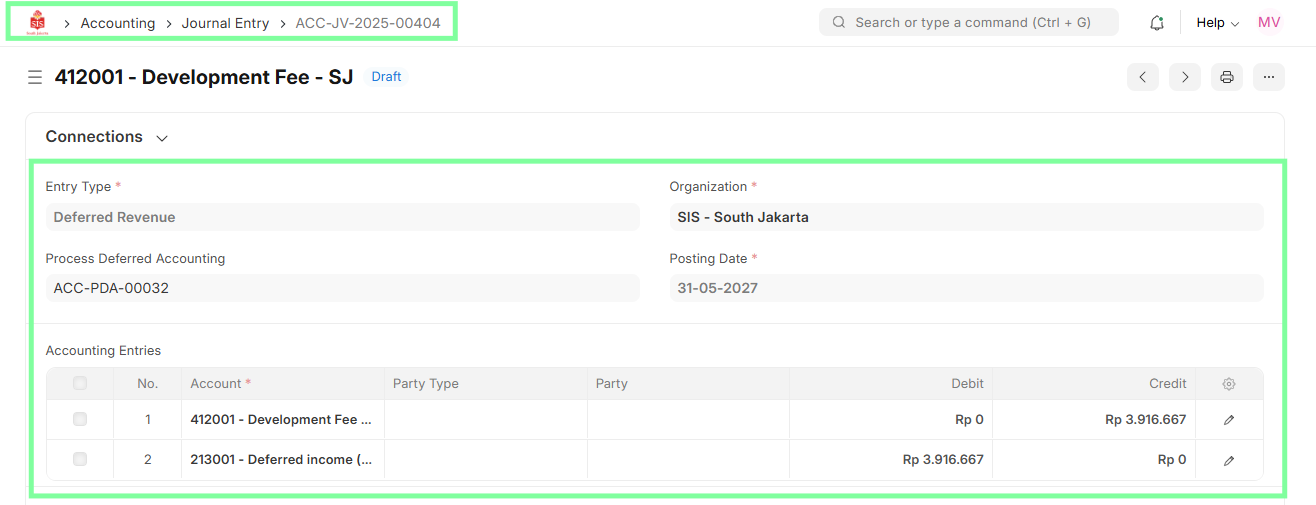
- Select Deferred Revenue & Expense Entry.
- Validate Entries and Period.
- Submit the Journal Entry.
Important Notes
- Submit journal entries monthly as per revenue and discount expenses that need to be realized for the particular month.
- NOTE: Future month journal entries are not allowed to be posted and will remain in draft mode.
- For filtering invoice-specific journal entries, apply the following filters:

FI - Payment Entry JV Against Billing ID Sent by the Tax Consultant
Executed by
Finance Manager
Processes Triggered From
- Taxation – Domestic WHT "(Variant)"
- Taxation – WHT 26 "(Variant)"
Navigation
Home > Accounting > Journal Entry
Steps
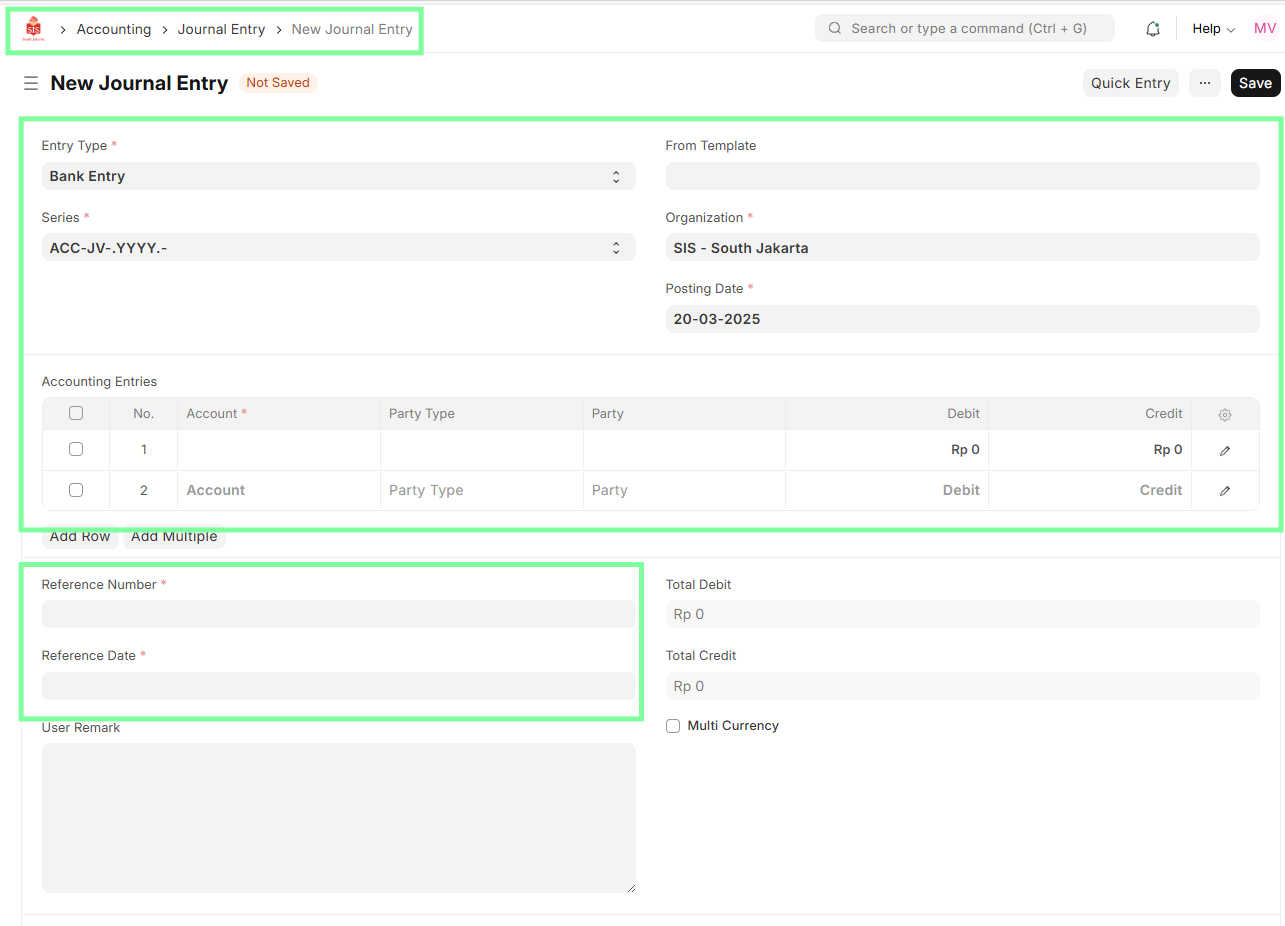
- Navigate to Journal Entry.
- Select Entry Type (e.g., Bank Entry) & Posting Date.
- Select the Debit account (WHT Tax Account) & Credit account (Bank Account).
- Input details such as Debit & Credit Amount, Billing ID reference in the Reference Field.
- Save and Submit Journal Entry to clear the liability.
FI - Journal Entry Posting for Monthly Payroll
Executed by
Finance Manager
Processes triggered from
- Monthly Payroll
Navigation
Home > Accounting > Journal Entry
Steps
- Navigate to the Journal Entry list.
- Open the Payroll-related draft Journal Entry.

- Verify debit and credit accounts and amounts.
- Click Submit to post the entry.